Python Turtle Graphics
What is Turtle?
Turtle is a Python module for drawing pictures with code.
You give commands to a small turtle on the screen. When the turtle moves, it draws a line behind it.
Turtle is a fun way to practice Python, because you see the result of your code as a drawing.
With a few lines of code, you can draw pictures like this:
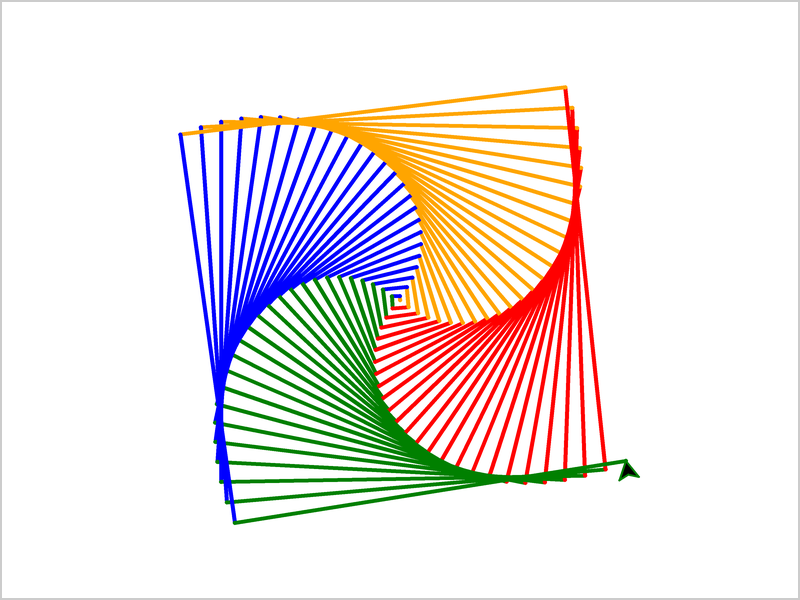
You will learn how to draw this spiral in the Turtle Projects chapter.
Your First Drawing
Let's start with a straight line:
Example
Draw a line:
import turtle
t = turtle.Turtle()
t.forward(100)
turtle.done()
Result:
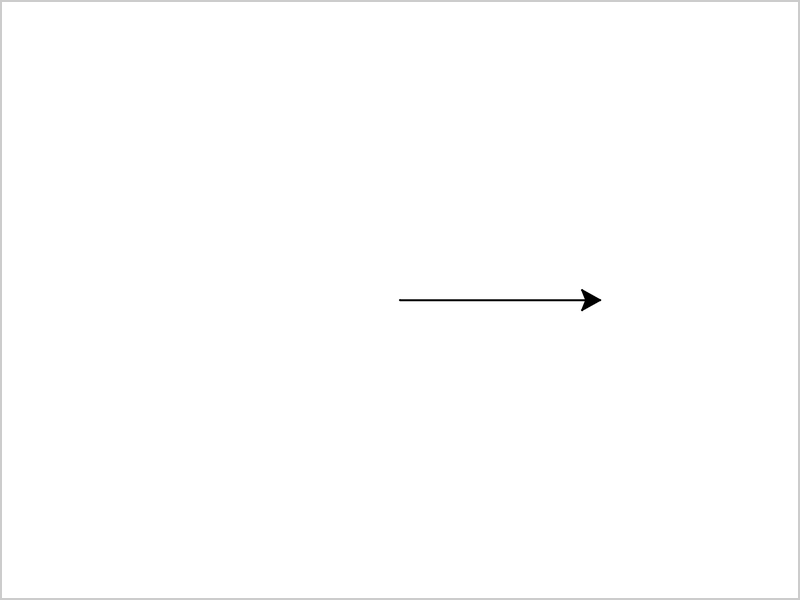
Example Explained
import turtleimports the turtle module.t = turtle.Turtle()creates a turtle, and stores it in a variable namedt. This also opens the drawing window.t.forward(100)moves the turtle 100 pixels forward.turtle.done()keeps the window open until you close it. Without it, the window can close as soon as the drawing is finished.
Note: Python is case sensitive. The module name turtle is written in lowercase, but Turtle(), which creates the turtle, starts with a capital T.
The Turtle Starts in the Middle
The turtle starts in the middle of the window, facing right.
That is why the line in the example above goes from the middle to the right.
The arrow at the end of the line is the turtle. It shows where the turtle is, and which way it is facing.
Run Turtle on Your Computer
Turtle is part of the Python standard library, so it is included when you install Python.
Turtle opens a window on your screen, so the examples work best on your own computer:
- Save the code in a file, for example
drawing.py - Run the file from the command line:
python drawing.py - A window opens, and the turtle starts drawing
Note: Do not name your file turtle.py. Python will then import your own file instead of the turtle module, and the code will not work.
Our online editor cannot open a drawing window. When you click "Run Example", you will see the code together with a picture of the result.
Linux: Turtle uses the tkinter module to open the window. On some Linux systems, tkinter is not installed by default. On Ubuntu and Debian, you can install it with sudo apt install python3-tk.
Change the Turtle Shape
By default, the turtle looks like an arrow.
Use the shape() method to make it look like a real turtle:
Example
Make the turtle look like a turtle:
import turtle
t = turtle.Turtle()
t.shape("turtle")
t.forward(100)
turtle.done()
Result:
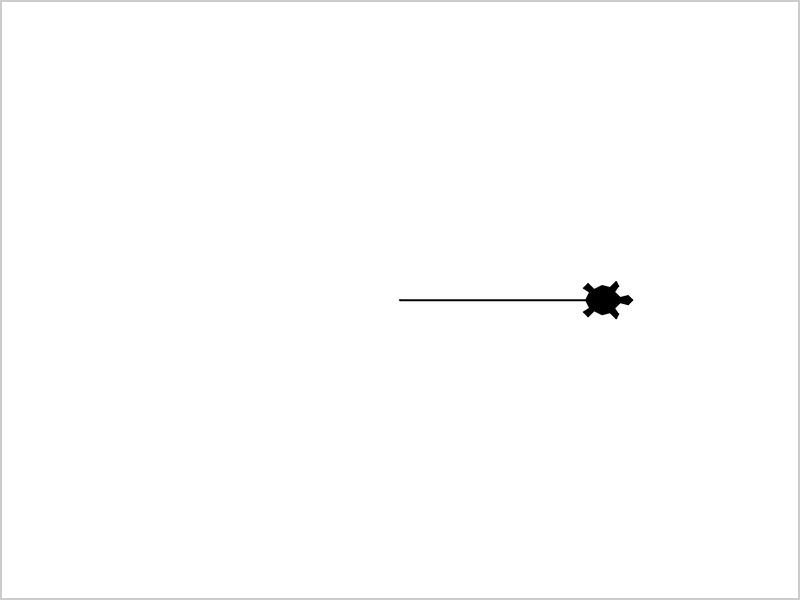
Other shapes you can use are "arrow", "circle", "square", "triangle" and "classic" (the default arrow).
Tip: You can find a list of turtle methods in our Python turtle Module Reference.